Your AI team, on your desktop
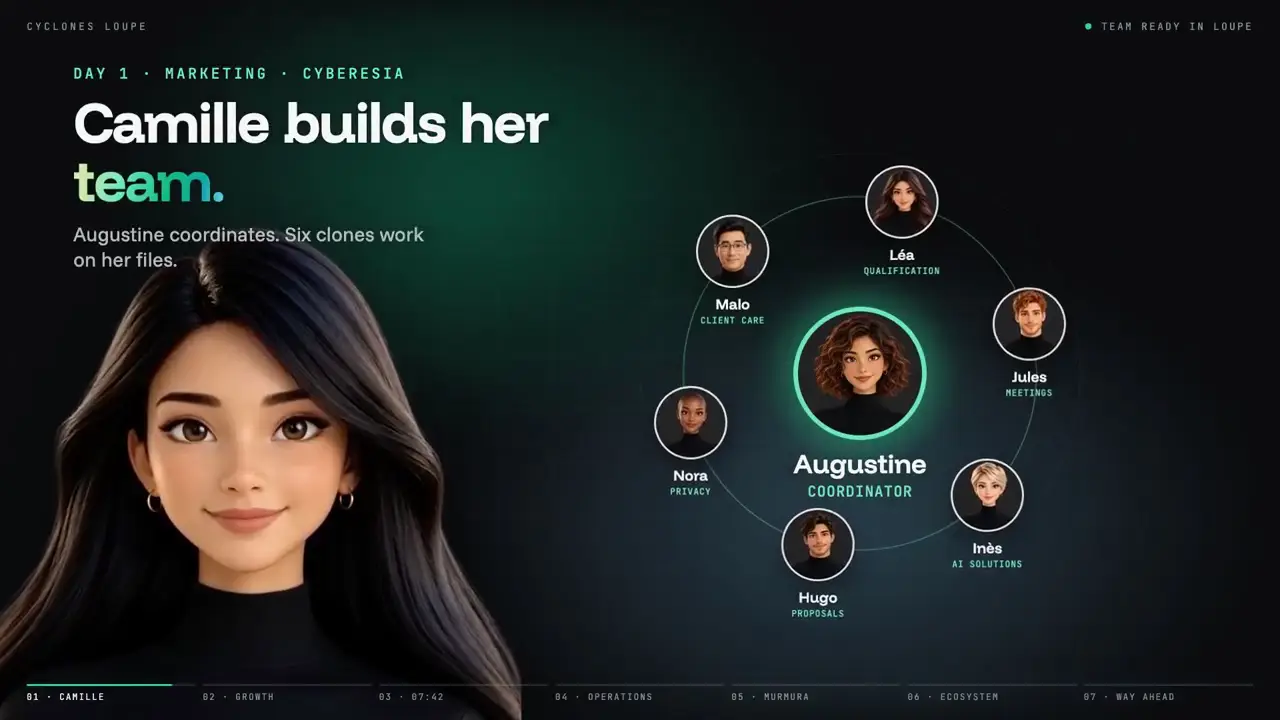
A team of AI colleagues, led by a coordinator, works on your files, your Office documents and your applications.
Cyclones Loupe is the desktop version of Cyclones Cloud. You describe the mission, the team organises itself, and every action stays visible, bounded and logged on your computer.
Choose the intelligence
An account with a provider (OpenAI, Anthropic, Google…) or a model running on your Mac with Ollama, with no account or key.
Allow the screen
macOS asks for two permissions so the team can see what you see and use your applications on your behalf.
Describe your work
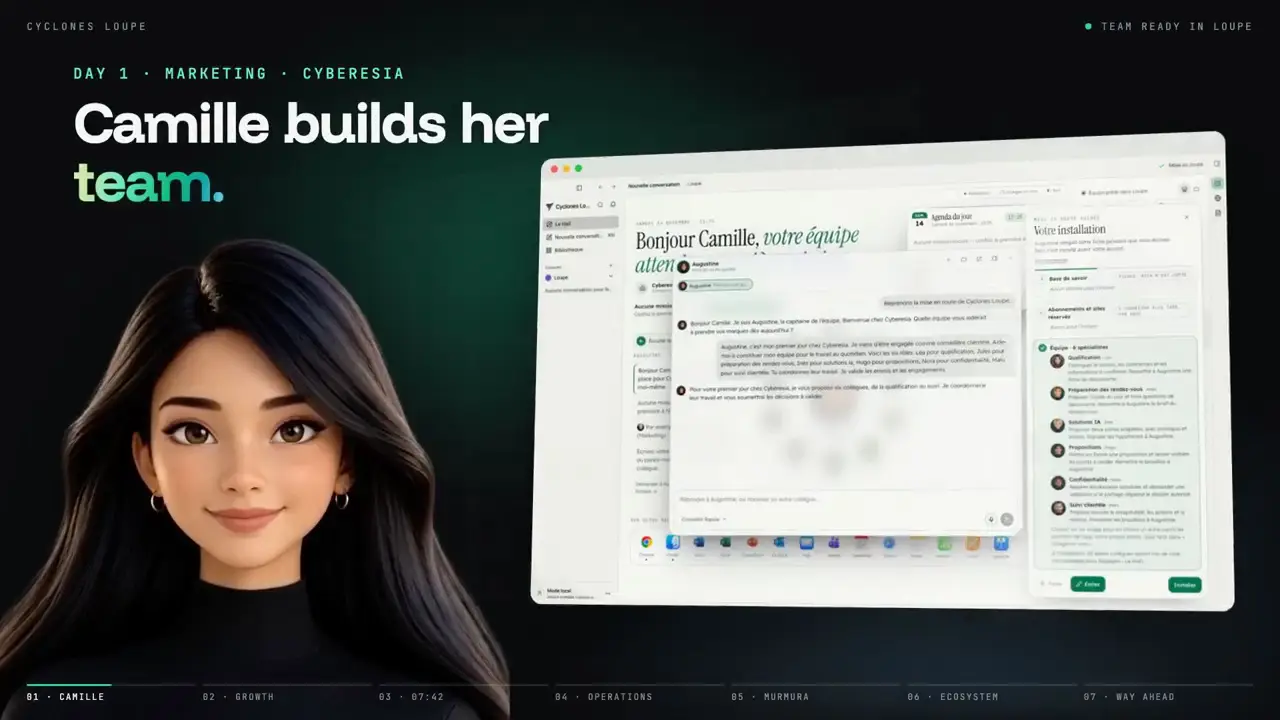
By voice or in writing, the coordinator asks about your role, prepares your working folder and proposes a team. You approve, and everything is set up.
Give everyone a face
Each colleague gets a name, a portrait and a voice, which you can change at any time. Portraits and voices stay on the computer.
Talk with the team
Gemini Live or Grok Voice for real-time conversation with your key, or a local voice that listens and speaks on the Mac. Without a key, the Mac’s voice reads the answers.
Launch a first mission
A Word note, an Excel table, a summary of the open sheet: pick a mission or write your own request, then follow its progress in the conversation.
Word, Excel and PowerPoint documents
The team drafts your documents and places them on a small floating desk, above your applications. One click opens them.
Your existing files
It writes into your workbooks and documents (cells, rows, paragraphs, tracked changes), including the open Excel file. The previous version is always kept.
Excel analyses
Exact figures computed on your sheets and CSV files: totals, monthly breakdowns, pivot tables and dashboards with charts.
File search
A file found by its name or content through the system index (Spotlight, Windows Search), without touching the system, hidden folders or secrets.
Screen control
Looking, clicking and typing in your applications. A border and a badge show which colleague is controlling the screen, with a Stop button.
Web browsing
The built-in browser, or your own Chrome through the Chrome Bridge, limited to the sites you list, with a live tracking card.
Business mini-apps
Small tools built by the team (cleaning a list, preparing a quote, tracking leave). They work offline and produce standard formats.
Wake-ups
A mission can start on its own, at a set time or when an email arrives, even after the app restarts.
Team overview
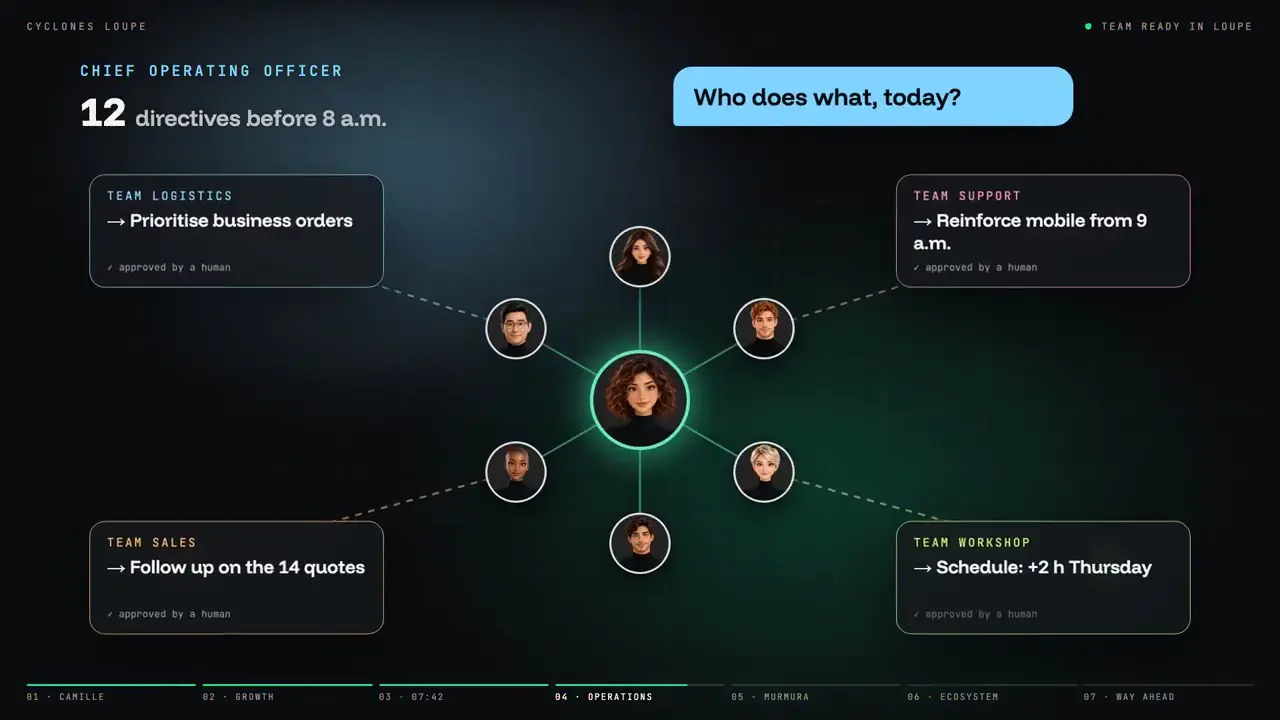
For each colleague: their status (working, waiting for you, available), their mission, their latest action and their activity over the last hour.
Live feed
Every action, newest first, filterable by colleague, type of action, status or keyword.
Action log
Everything the team has done on the computer (the command, the file, the on-screen action) is recorded locally.
Memory and lessons
Your feedback becomes lessons each colleague then applies. They stay on the computer, and you remove the ones that no longer hold.
Three levels on the web
Read, Search or With my approval. At the broadest level, every submission (publish, send, book, accept) is put to you first.
A red zone
Paying, buying, making a transfer, subscribing, signing, deleting an account, entering a password or a code: a colleague never does it, and hands over to you.
Nothing without your approval
Nothing is deleted, sent or paid without your approval. You can make the team stricter in the settings.
Spending cap
A cap per day and per mission on AI model usage. Beyond it, the team stops and says so.
Functions on demand
Each team function can be switched off: it is refused until you turn it back on.
Untrusted content stays untrusted
The team follows only your instructions, never those it reads on a page. You can take over or stop everything at any time.
Cyclones Cloud
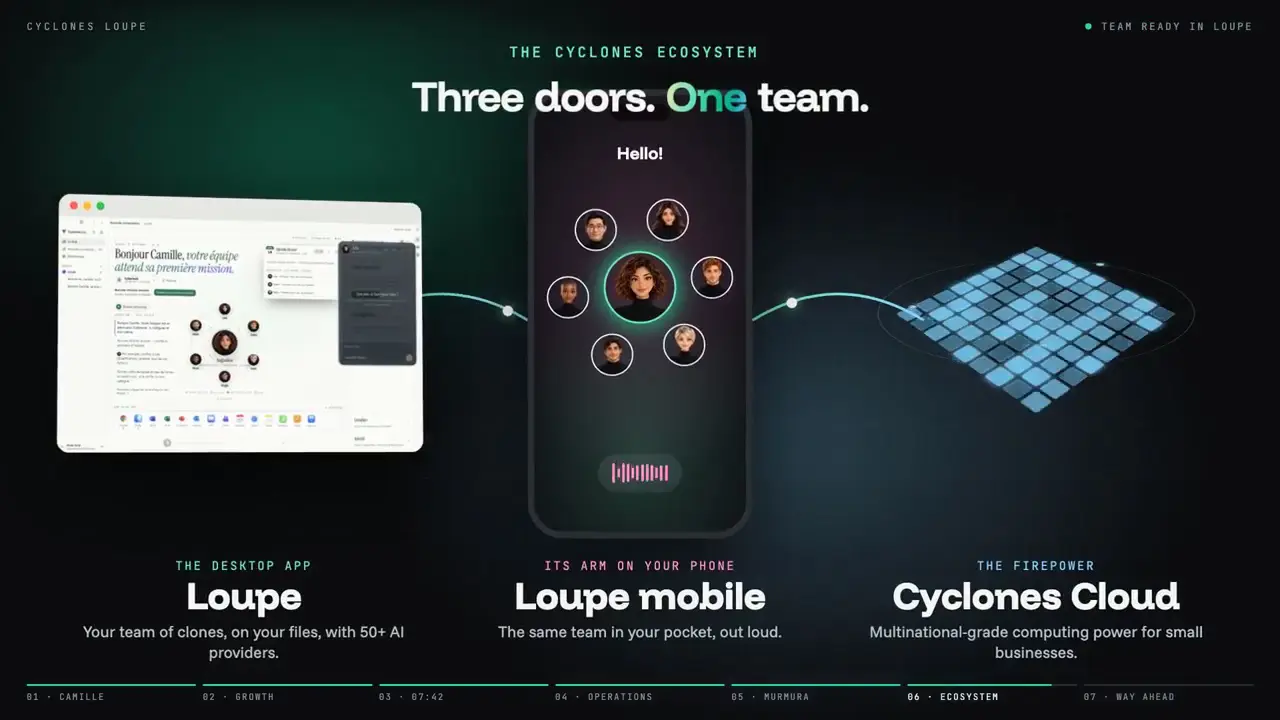
Orchestrates your teams, in a Swiss or an international cloud.
Cyclones Loupe
Brings your AI team to your desktop, where it acts on your files, your documents and your applications.
Loupe Mobile
Keeps the team within reach on the move. The phone links to your Cyclones Cloud account with a code, just like the desktop app.
Discover Cyclones Loupe
Cyclones Loupe is built for macOS first; Windows follows. Explore the Cyclones family on cyclones.ai, or ask our team for a demo.